
Get Name
Overview
Get Name retrieves the selected component’s file name, full file name, and folder path. Use it when you need to quickly identify a component, copy its name for use in another dialog, or locate its file on disk.
How It Works
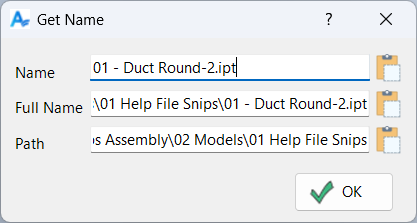
When you run Get Name, you are prompted to pick a component occurrence in the graphics window. The command reads the underlying component document and displays three values: file name, full file name, and folder path.
Buttons in the dialog copy the chosen value to the clipboard and close the dialog. If the component is unsaved or virtual and does not have a valid file path, the tool falls back to the occurrence name where possible.
Context Menus
This command does not provide context-menu pickers. Selection is performed directly in the graphics window when prompted.
Usage Instructions
- Open an assembly.
- Start Get Name.
- Select the component to identify.
- In the dialog, click the copy button for the value you want (Name, Full Name, or Path).
Troubleshooting
- Path is blank: The component may be unsaved/virtual or not resolved to a file on disk.
- Nothing is copied: Ensure the value field is not empty; then click the copy button again.
- Unexpected file: Verify you selected the intended occurrence rather than a different instance in a pattern.
Examples
Example: Copy a component file name into another command
Run Get Name, pick the component, and click the Name copy button to place the file name on the clipboard.
Example: Locate a component on disk
Run Get Name and copy the Path or Full Name, then paste it into File Explorer or a logging/reporting tool.
Dialog Box Input
After being prompted to select a component, a dialog is opened with the component name and name including the path. You can click the copy to clipboard button for any of these values.
Samples
See Sample Get Name for an example, and Samples Summary for where sample files are installed.
